Basic concepts in Mootion
Last updated: 10/22/2026
Mootion is easy to use already, but get to know some concepts will better help you streamline the creation.
Director Mode
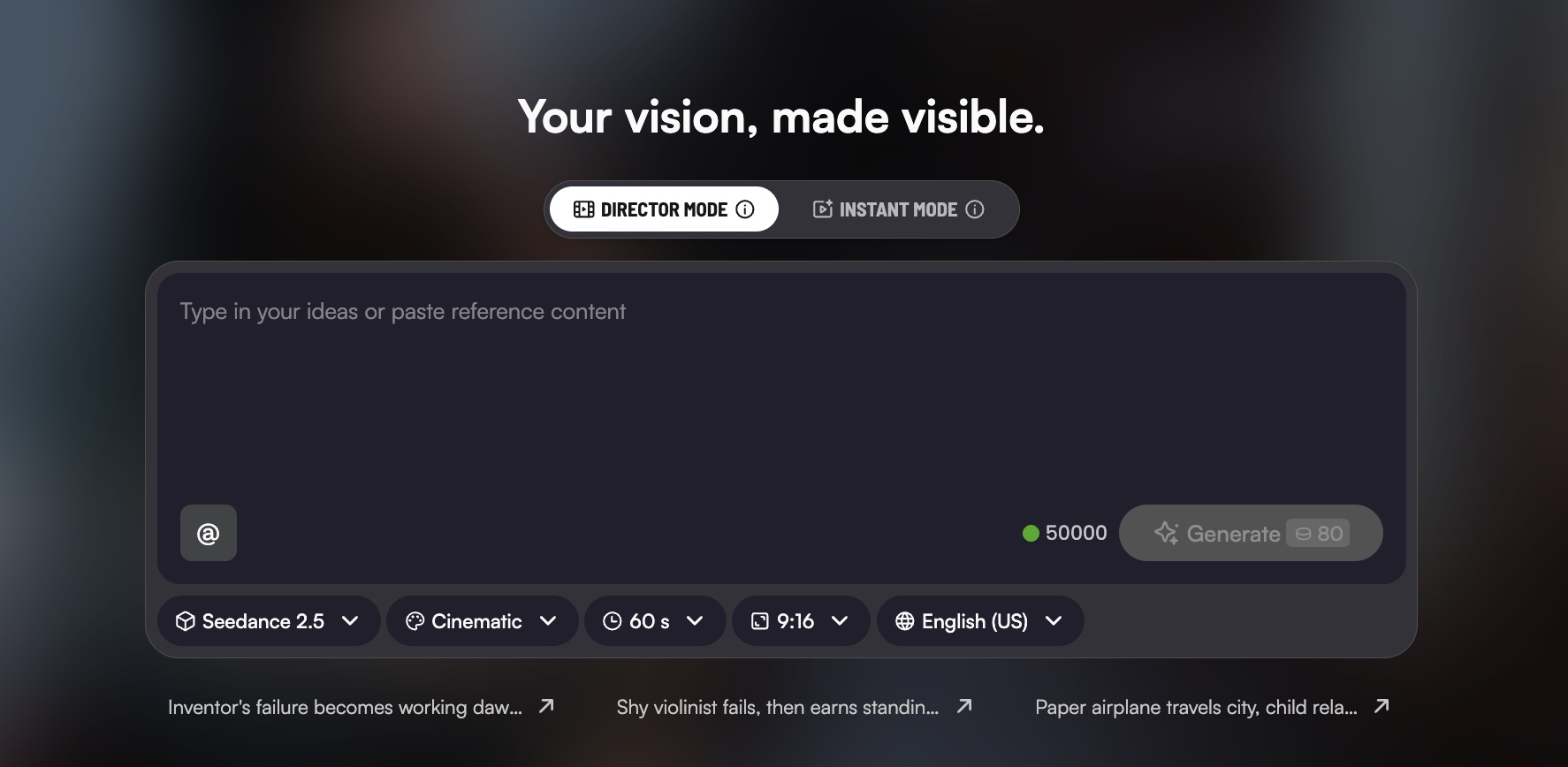
Director Mode is mainly for storyboard-driven projects up to 10 minutes. Designed for professional storytellers who need granular control.
How It Works:
- Prompt & Characters: Enter your story prompt to kick off the generation. You can also select existing saved characters from your Character Library at the start.
- Character List & Static Scenes: Mootion automatically parses your story to generate a dedicated Character List, detailed script breakdowns, and keyframe static scenes for each shot.
- Scene-to-Video Rendering: Review and adjust the script and static scenes. Once confirmed, convert each scene into fluid video clips.
- Final Compositing: Seamlessly stitch and adjust your video clips together to composite your complete cinematic masterpiece.
Instant Mode
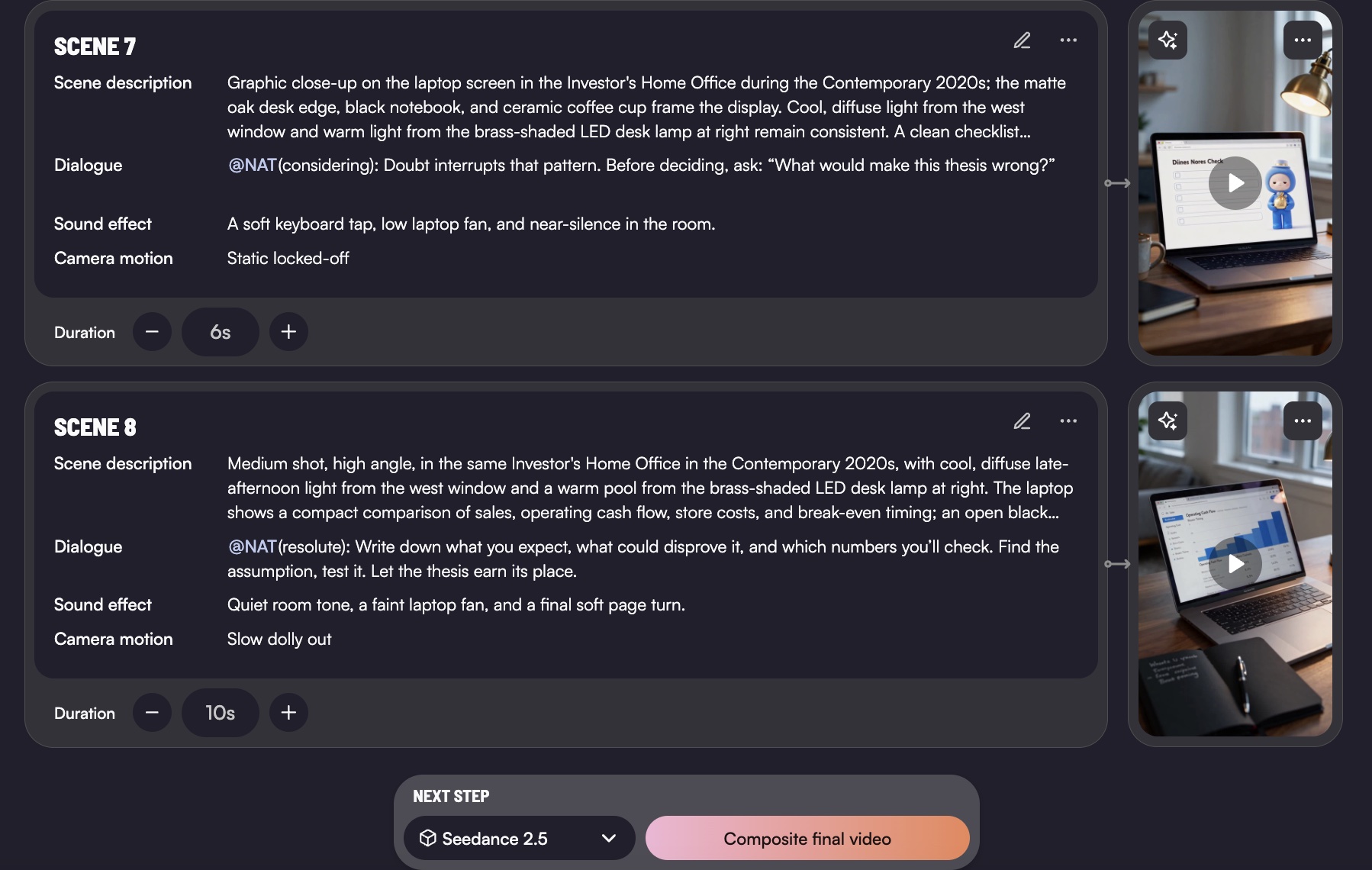
Ideal for quick ideation, social media clips (TikTok, YouTube Shorts, Reels), and rapid prototyping. Type your prompt and let AI instantly transform your creative spark into a complete, ready-to-share video.
You could upload the reference image, audio, or videos for better character consistency.
Character Library
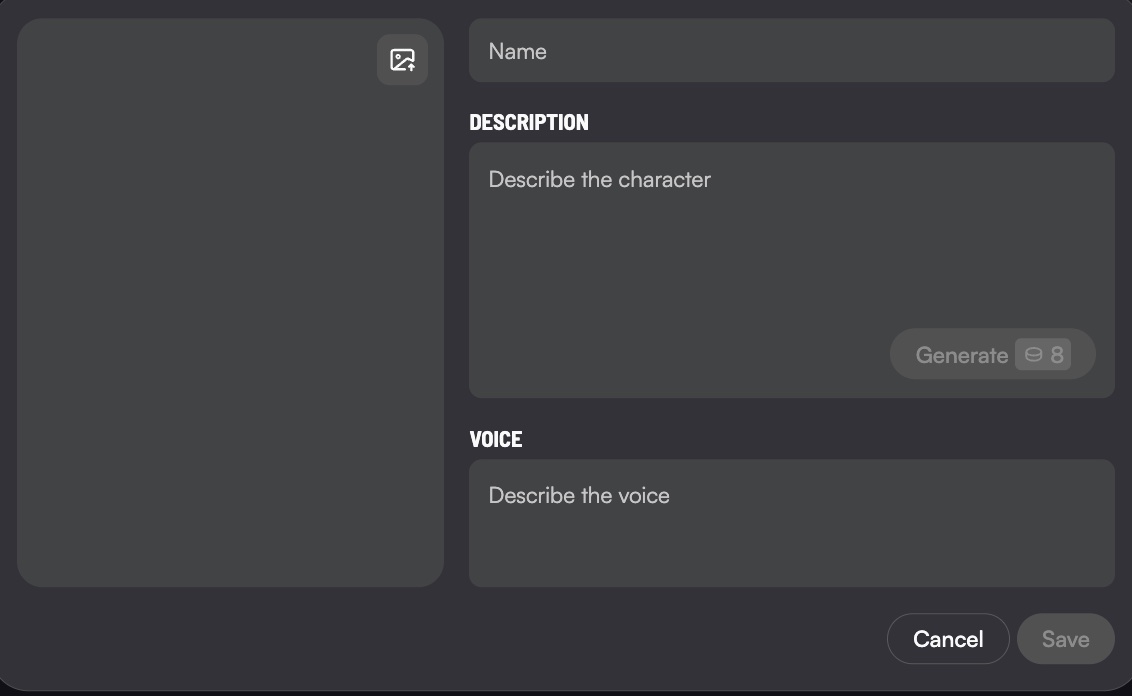
How to Use:
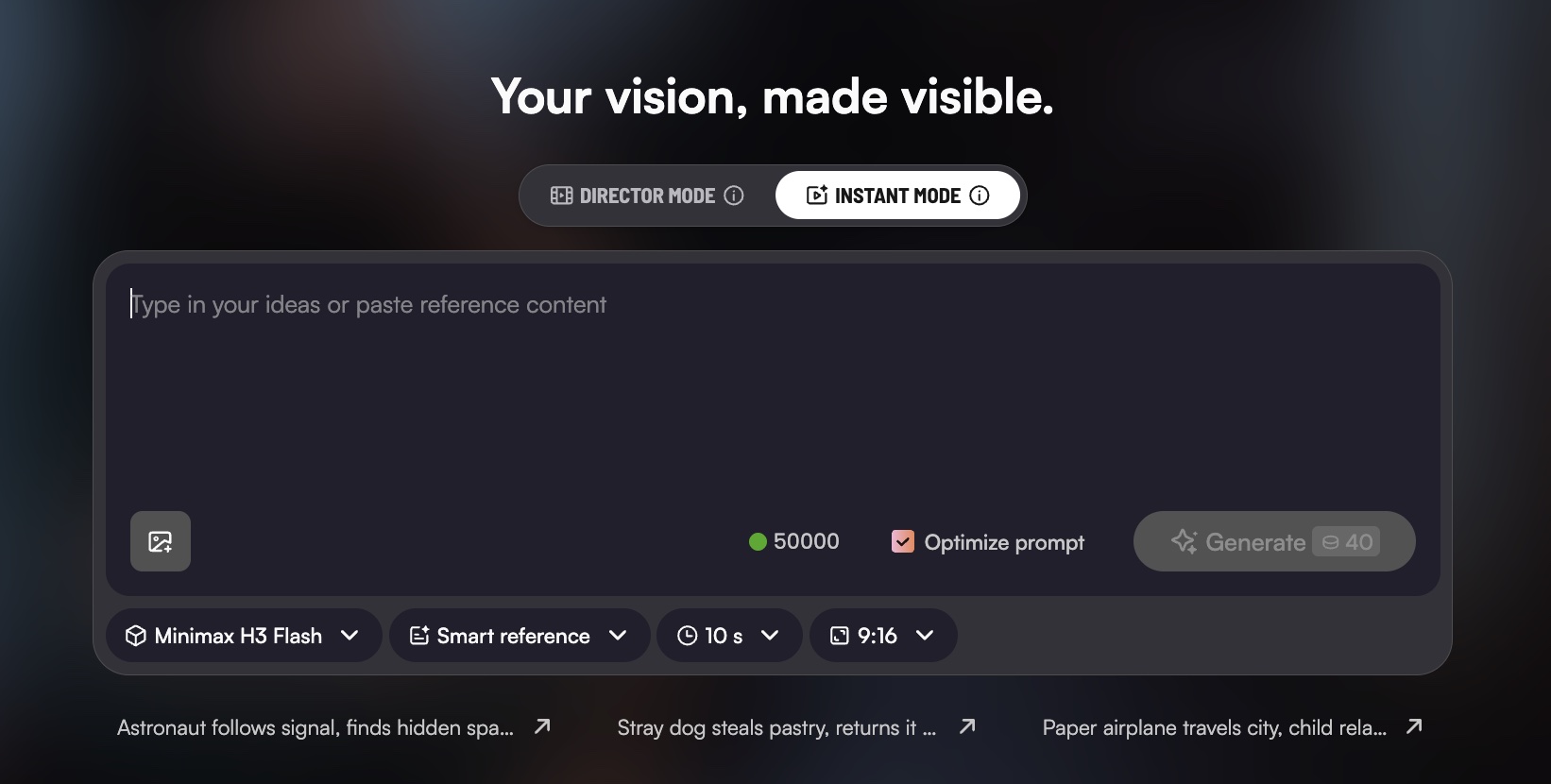
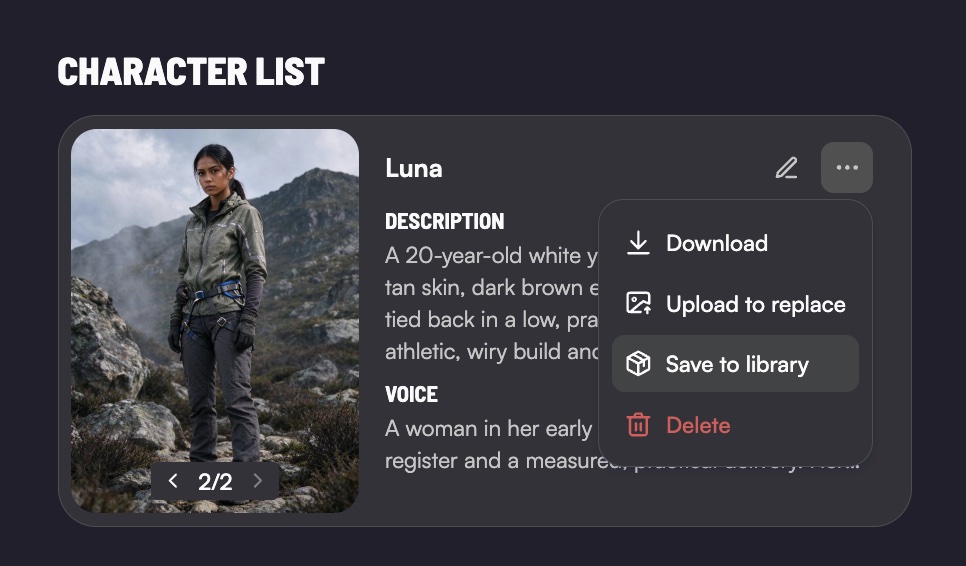
- Save: In any previous project, select the character you want to reuse and click "Save to Library".
- Add: Head back to the generate interface, switch to Director Mode, open your Character Library, and click "Add to Story".
(Note: This feature is exclusively available in Director Mode.)
Core Value:
- Reuse & Consistency: Seamlessly reuse your saved characters across multiple independent projects.
- Multi-Character Interaction: Bring multiple familiar characters together into a single, cohesive storyline.
- Infinite Adventures: Drop your favorite characters into entirely new genres, environments, and plots.
AI Thumbnail Generator
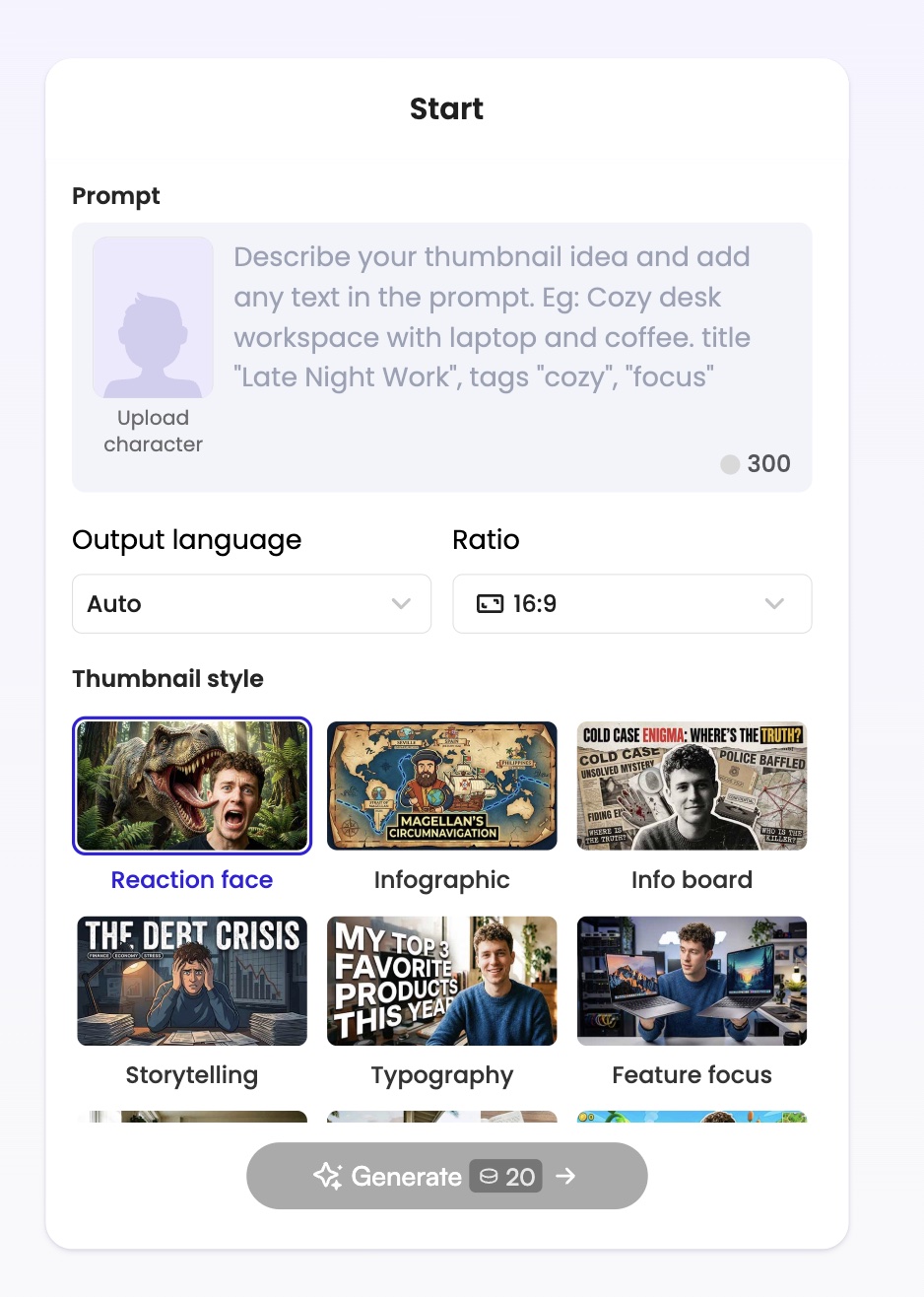
How to Use:
- Describe Your Idea: Enter a text prompt describing the thumbnail concept you want to create.
- Add Reference (Optional): Upload a character image to maintain visual consistency.
- Customize Settings: Choose your preferred output language, aspect ratio, and visual style.
- Generate: Click to produce striking, platform-ready thumbnails.
Key Elements in Templates
Tone
Tones refers to the overall attitude or feeling of your narratives. It's the emotional quality or atmosphere that influences how the audience perceive the narrative. You could choose the presets or give your own in Mootion.

Scene
The basic visual element in Mootion, videos are composited by scenes. All scene-level editing features are active on the left.

Use Asset
The place where you can upload images to insert into scenes such as logos, figures, product etc..
